EBAY SELLER PROGRAM
What New Sellers Need to Know about eBay?
To start an eBay business, you need to update its latest policies and highlights. I call this stage the initial evaluation during my selling experience on eBay.
So, what does it have in store for you? We’ll find out together just now!
How to Sell on eBay for Beginners Step by Step?
The selling process on eBay is quite similar to other top marketplaces in the world. First, you need to understand how selling on eBay works, decide what to sell, and find your suppliers. Once finished, you can get your hand right into starting selling on eBay by following this step-by-step guide.
To sell on eBay, follow these steps below:
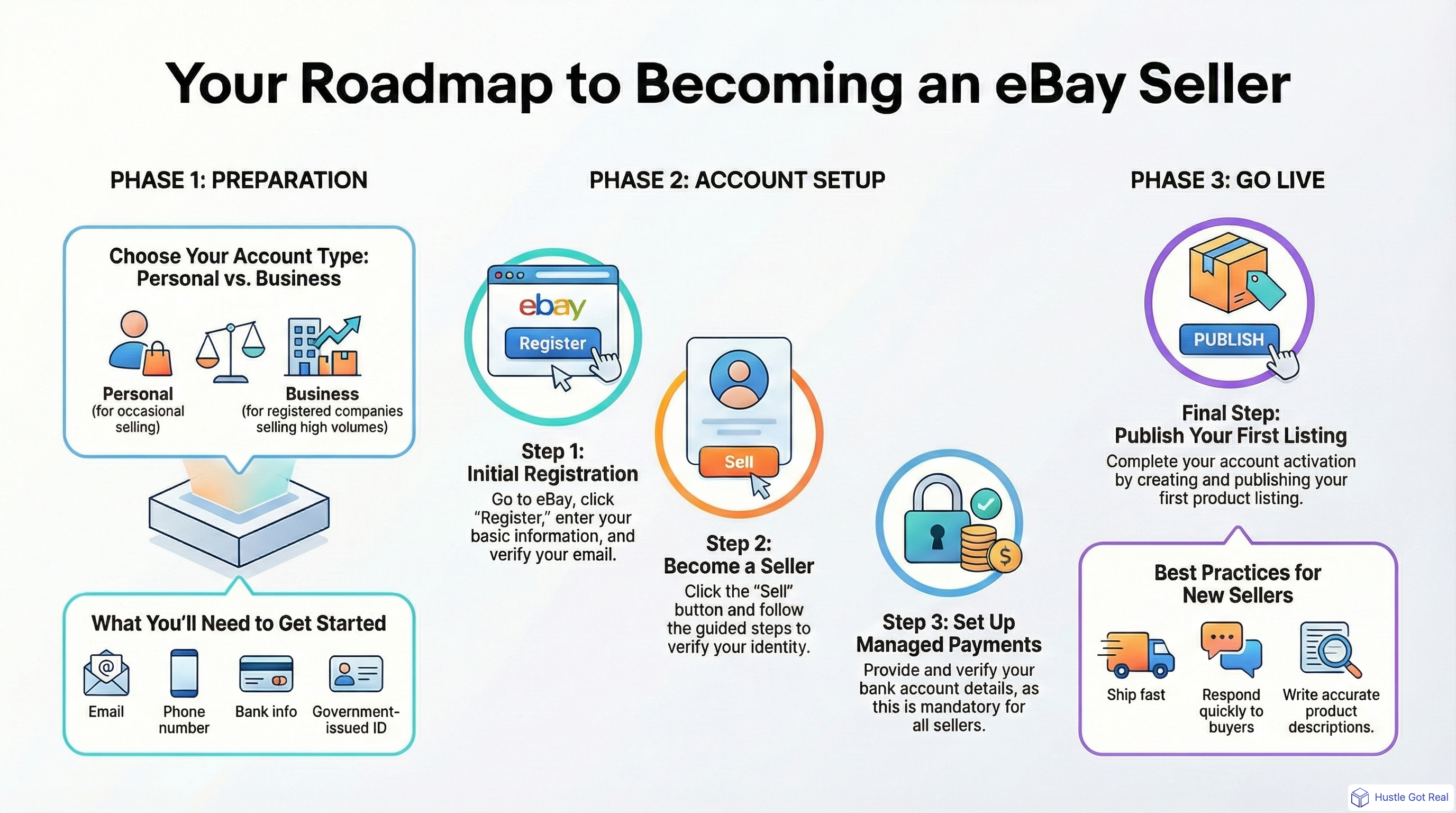
Step 1: Create an eBay seller account (and set up)
The first step to learning how to sell things on eBay is to create an eBay seller account.
You have two options: eBay business account vs personal account. In fact, the page defaults to registering a personal account – a suitable option if you plan to sell small amounts of items at a specific time. If you want to sell many products regularly, you should go with an eBay business account.
If you register a business account, you will need to provide additional information such as your business name, type of business, and your address. Follow these steps to create an eBay business account.
- Click Register in the top left corner of the eBay homepage
- Choose Business account
- Enter your business name and email address
- Add your password
- Select your business location
- Click Create account
Besides, you can create your eBay account with Google, Facebook, and Apple accounts work too. Easy peasy!
eBay username setup
Next, you will need to create a username. Your username is the name that will represent you on eBay. You can change it later, but choose a name that is unique and can reflect the products that you will sell on eBay.
For instance, if you sell gardenware or home decor, your store name can look like this: Plant Paradise, Home Sweet Home, Green Escape, Rustic Charm.
Payment setup
Before you start learning how to sell items on eBay, it’s important to understand how payments work today. This is one of the biggest changes that affects all sellers.
In 2026, all sellers must use eBay’s managed payments system. This means buyers pay directly to eBay, and eBay handles payouts to your bank account.
Unlike before, you can no longer:
- Receive payments directly via PayPal
- Choose your own payment processor
Instead, eBay will:
- Collect payments from buyers
- Automatically deduct selling fees
- Send payouts to your bank account on a regular schedule
This system simplifies operations, especially for beginners learning how to sell on eBay for beginners, because everything, from payments to fees, is centralized in one place.
From our experience, while managed payments make things easier, many new sellers overlook payout timing. Since funds are not instant, you need to plan your cash flow carefully, especially when scaling your business.
Once you are done creating a username, you have to set up your payment methods, such as Payoneer, a checking account, or a credit/debit card. Choose your preferred payment method and follow the prompts to add your payment details. If you choose Payoneer, you’ll be redirected to the Payoneer website to log in and link your account.
After linking your bank account, review and confirm everything. Click Continue; you will be redirected to eBay’s homepage. That’s the first step of selling on eBay for beginners!
Step 2: Set up your eBay store
As you sell on eBay, you will need to open an eBay store to show your items.
Click Sell in the top right corner of the page to start selling on eBay.
Your store appearance represents your brand. Hence, setting up a good store profile, including your picture and description, is crucial. Now, you must choose a store subscription to kickstart your journey to selling on eBay.
Once you’ve selected, follow these steps to set up your eBay store:
- Go to the Seller Hub on eBay. You can access this by clicking on your username in the top left corner and then selecting Seller Hub from the drop-down menu.
- In the Seller Hub, click on Marketing in the left sidebar and then select Manage My Store.
- Click on Subscriptions and then choose Subscribe for the subscription level you want.
After that, let’s customize your store to reflect your brand and showcase your products:
- From the Seller Hub, click on Marketing and then select Manage My Store.
- Click on Customize My Store to access the customization options.
- Upload a store logo and banner image to personalize your store.
- Add a store description that describes your business and the products you sell.
- Choose a color scheme that matches your brand.
- Arrange your store categories to organize your products effectively.
- Set up promotional banners and messages to attract customers.
Also, dig deep to issue your store policies cause it will be the requirement you ask customers to follow. Add all the information on the Payment options, Return, and Shipping Policy in your store’s policy.
More than that, as you fill in these details, always check eBay’s updated terms. That’s quite a big part as you learn how to sell things on eBay.
Step 3: Price your item competitively
When it comes to how to get started selling on eBay, setting a competitive price and deciding your pricing method impact buyers’ decisions to buy and item visibility in eBay’s search results.
As for listing your items on eBay, this marketplace offers two main listing formats: Auction or Buy It Now (Fixed-price listings).
- Auction-style listings: Buyers will bid on the items until the end date you set. You can include an accept Best Offer option, which allows buyers to make an offer on an item. You can set a fixed price on auction-style listings, but it should be 30% higher than the starting price. This auction style is the best suit if you’re unsure about the item’s value, want to sell quickly, or if your item is rare and unique.
- Buy It Now (also known as Fixed-price listings): This is suitable when you know the price you want to get for an item, have a lot of inventory, or want your listing to appear in search results for more than 10 days.
After you decide your pricing methods to sell on eBay, price your items. Pricing isn’t a guessing game, so do some market research to find a competitive rate for your product, etc.
Step 4: Create a listing on eBay
Now you’re halfway through the How to Become an eBay Seller guide. It’s time you list and sell on eBay.
Simply select Create Listing in your Seller Hub Listings dropdown menu. Then add all the information about your products.
- Product name or identifier
- Description
- Category and details
- Quantity, price, weight, and other options
- Package settings and shipping details
- Item specs and variations
- Condition of the product
Remember that if you’re selling a high-priced item, such as an antique or a collectible, you can include professional valuation or authentication paperwork in the listing photos. This can help justify the item’s high price and attract bidders. Also, don’t forget to include eBay SEO practices!
If you don’t know how to list multiple items on eBay to save time yet, there are 3 possible ways: eBay’s quick listing tool, advanced listing form, or third-party listing software.
1. Native eBay listing tool
It’s a good option when you sell on eBay for the very first time, as it’ll provide detailed guidance on how to price and ship your item based on previous sales of the same or similar items.
With the quick listing tool, you can identify your products by entering words that describe most about your items or UPC/ISBN code in the search bar. eBay will automatically suggest listings based on similar items that have been sold.
For instance, if you’re listing a pair of Nike shoes for men, the quick listing tool will start populating information for you.
Choose Select if you see a listing that matches the product you’re also offering.
2. Advanced listing form
Let’s carry on our guide of how to list on eBay with the advanced listing form. This method of listing multiple products on eBay is suitable if you have a lot of inventory or sell on eBay frequently.
To identify a product using the advanced listing form, enter your product’s keywords into the search bar and click Get Started.
If you’re unsure what the main keywords are, you can identify your product by clicking Browse Categories and selecting the category and subcategories that best match your item. For example, you can specify the genre if you’re selling books.
Once you’ve made your selections, there’ll be a form with a variety of fields to fill in about your item:
- Title;
- Product identifiers – UPCs, ISBNs;
- Item specifics – size, make, model, color, etc.
- 12 high-resolution product images;
- Product description.
You can move on to the next step after your product information is finished.
3. Third-party eBay listing tools
Using third-party tools to list and sell on eBay can be helpful if you want to save more time and effort. It is a powerful eBay bulk listing tool with features to simplify your listing process. The most prominent ones are:
- List products across multiple channels. You can list and manage products not only on eBay, but also on platforms like Shopify, Amazon, Etsy, TikTok Shop, and more.
- Support 20+ popular marketplaces. This allows you to expand beyond eBay and reach more customers without extra manual work.
- Free and powerful listing editor. Easily edit product data in bulk using a unified interface, instead of adjusting listings one by one.
- Flexible for every selling scenario. Whether you’re matching existing listings, creating new ones, or handling variations.
- Custom sync settings for each channel. You can configure inventory, pricing, and order sync rules differently for each marketplace, giving you full control.
This will populate your listing with the information from the chosen listing. Then, you’ll be able to edit any fields to customize your specific product.
Step 5: Set up shipping options
By getting your products listed on eBay, you’ve done a crucial part of selling on eBay. But don’t forget to set up shipping options, which decide how you deliver your items to your customers later.
A strong shipping policy will increase the visibility of your products when selling on eBay. Using the marketplace’s search engine, buyers can sort products with short shipping times like same-day or one-day delivery that meet eBay’s Guaranteed Delivery (EGD) guidelines.
To learn how to ship on eBay, first, fill out the information as follows:
- Type of rate: Select a flat rate for all buyers, a calculated rate based on the buyer’s location, freight shipping for large items weighing more than 150 pounds, and “No shipping: Local pickup only.”
- Carrier services: You can choose from various carriers and services, including USPS, FedEx, and UPS.
If you offer international shipping, you must also select a rate type, but you will only have two options: flat rate or calculated rate based on the buyer’s location. If you need assistance with sending orders on time, consider signing up for eBay’s Global Shipping Program (GSP).
Any other questions about shipping? If not, keep scrolling through my guide to sell on eBay and learn about return and exchange policies!
Step 6: Create your return and exchange policies
The next step in the How to Start Selling on eBay for Beginners guide is to set up return and exchange policies.
Providing a 30-day return option is something eBay recommends for sellers. It’s what most eBay buyers expect. If you also offer free returns, it can make shoppers feel more confident about buying from you, boosting your sales.
Remember, eBay makes this information clear to shoppers, so ensuring your listings match these expectations is essential to compete effectively.
Step 7: Go live!
The last piece of the puzzle How to sell on eBay for newbies: After finishing all the steps from the 6 stages above, you’ll receive an email notifying you that your listing has gone live. Congratulations! Your eBay store is now on. And all you can do is wait for the first sale.
You may need to answer questions from buyers and then complete the transaction when you sell on eBay. Clicking My eBay in the top right-hand corner of the menu, you can view your active listings, see how many people are watching your listing or have bid on it, and answer any buyer questions from this page.
FIND THE PRODUCT YOU WANT TO SELL EASY ON SMITH DISTRIBUTORS EBAY MARKETPLACE.
SMITH DISTRIBUTORS offers free Drop Shipping services to all customers. Whether you want to set up an online store or sell on eBay.com, you'll find everything at smithdistributors.com. We manage inventory and online accounts, saving you from costly investments and complex systems.
EBAY SELLER (AUTOMATICALLY):
- Choose products - Get instant access to 1.5 million wholesale dropship products in 100+ popular niches, all shipped from trusted US based suppliers for quicker shipping times. Use our eBay integration to expand your product catalog and increase sales with automated listing and inventory syncing.
- Import to eBay - Connect your eBay account and start importing products in minutes. Set your global settings, adjust price markups, map eBay categories, and bulk upload listings directly to your store. Once your products are live, sit back and start receiving orders.
- Make sales & get paid - Once an item sells on eBay, payment is handled securely through eBay and deposited directly into your bank account. You collect the revenue first, then process the order with your supplier. Simple and transparent.
- Process your orders - When an item sells on eBay, the order syncs instantly to your Wholesale2B account. One click to process the order and the rest is handled for you, including tracking updates. No manual data entry. No complicated steps. You keep your markup as pure profit.
USE IMPORT THOUSANDS OF PRODUCTS & AUTOMATE TO YOUR STORE IN JUST MINUTES: CLICK STORE to Registering with eCommerce
 IMPORT PRODUCTS AUTOMATE